https://www.jeffgeerling.com/blog/2018/installing-php-7-and-composer-on-windows-10
Install PHP 7 on Windows 10
- Install the Visual C++ Redistributable for Visual Studio 2015—this is linked in the sidebar of the PHP for Windows Download page, but it's kind of hidden. If you don't do this, you'll run into a rather cryptic error message,
VCRUNTIME140.DLL was not found, andphpcommands won't work. - Download PHP for Windows. I prefer to use 7.1.x (current release - 1), so I downloaded the latest Non-thread-safe 64-bit version of 7.1.x. I downloaded the .zip file version of the
VC14 x64 Non Thread Safeedition, under the PHP 7.1 heading. - Expand the zip file into the path
C:\PHP7. - Configure PHP to run correctly on your system:
- In the
C:\PHP7folder, rename the filephp.ini-developmenttophp.ini. - Edit the
php.inifile in a text editor (e.g. Notepad++, Atom, or Sublime Text). - Change the following settings in the file and save the file:
- Change
memory_limitfrom128Mto1G(because Composer can use lots of memory!) - Uncomment the line that reads
; extension_dir = "ext"(remove the;so the line is justextension_dir = "ext"). - In the section where there are a bunch of
extension=lines, uncomment the following lines:extension=php_gd2.dllextension=php_curl.dllextension=php_mbstring.dllextension=php_openssl.dllextension=php_pdo_mysql.dllextension=php_pdo_sqlite.dllextension=php_sockets.dll
- Change
- In the
- Add
C:\PHP7to your Windows system path:- Open the System Control Panel.
- Click 'Advanced System Settings'.
- Click the 'Environment Variables...' button.
- Click on the
Pathrow under 'System variables', and click 'Edit...' - Click 'New' and add the row
C:\PHP7. - Click OK, then OK, then OK, and close out of the System Control Panel.
- Open PowerShell or another terminal emulator (I generally prefer cmder), and type in
php -vto verify PHP is working.
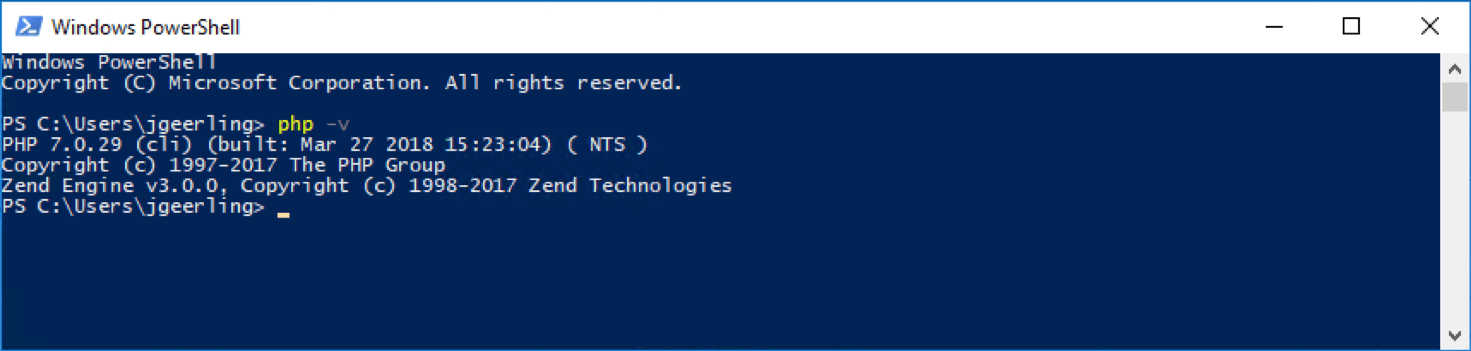
At this point, you should see output like:
Windows PowerShell
Copyright (C) Microsoft Corporation. All rights reserved.

PS C:\Users\jgeerling> php -v
PHP 7.0.29 (cli) (built: Mar 27 2018 15:23:04) ( NTS )
Copyright (c) 1997-2017 The PHP Group
Zend Engine v3.0.0, Copyright (c) 1998-2017 Zend Technologies
This means PHP is working, yay!
Install Composer on Windows 10
Next, we're going to install Composer by downloading it and moving it into place so we can run it with just the composer command:
- Download the Windows Installer for Composer and run it.
- Note that the Windows Installer for Composer might ask to make changes to your
php.inifile. That's okay; allow it and continue through the setup wizard. - Close out of any open PowerShell or other terminal windows, and then open a new one.
- Run the
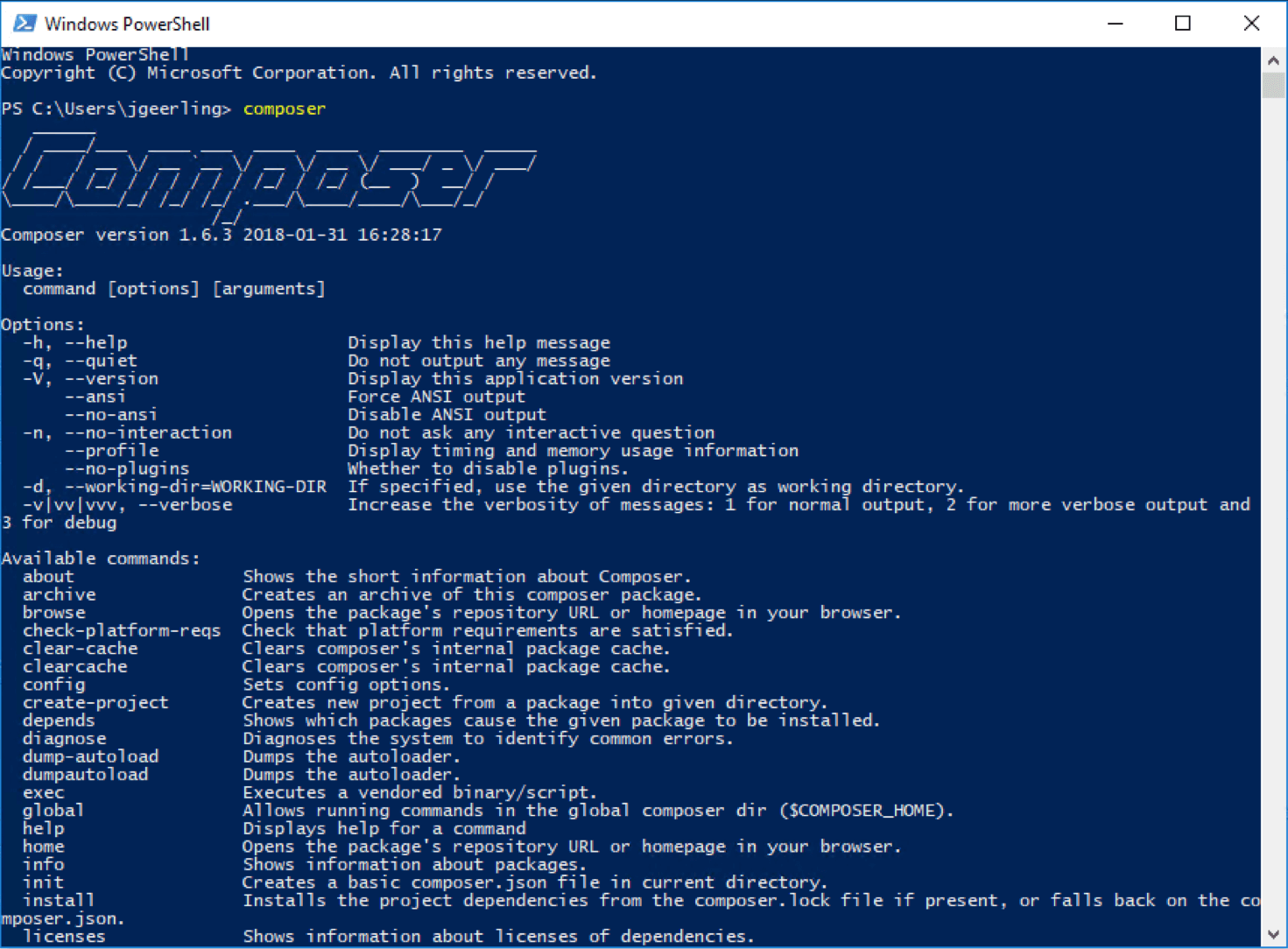
composercommand, and verify you get a listing of the Composer help and available commands.
That's it! Now you have PHP 7 and Composer running natively on your Windows 10 PC. Next up, dominate the world with some new PHP projects!

No comments:
Post a Comment